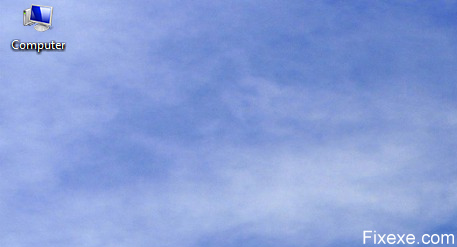
Windows default My Computer icon is not displaying on the desktop. We will present you quick and easy methods to make it appear.
Method #1
- Click Windows Start button
- Navigate to My Computer icon
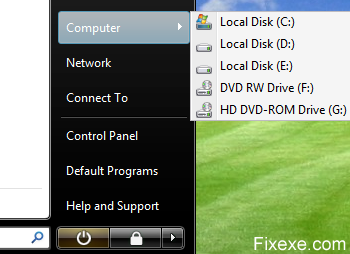
- Click with the mouse right button on My Computer icon and select “Show on Desktop”
Your “My Computer” icon is now appearing on the desktop.
Method #2
- Click with the mouse right button on Taskbar and select Properties
- Once Properties window is appearing navigate to Start Menu tab
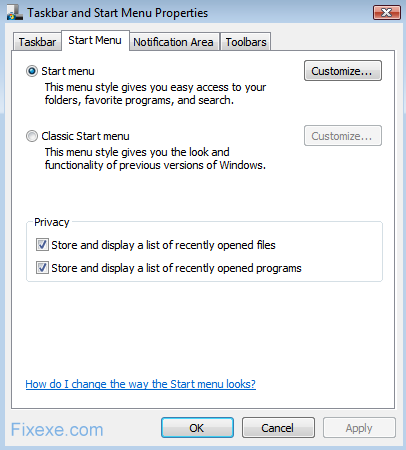
- Select Classic Start menu radio button
- Click OK to confirm changes
Your “My Computer” icon is now displaying on the desktop.
I APPRECIATE YOUR HELP .
I hv a problem with my pc.i installed a softwere make make your window genuine.and ever since notn is displaying on my screen,i cnt even get to my pc main screen,just dat window genuine.how do i remuve it?cos i cnt even c any icon nor d start bar.
I hv a problem with my pc.i installed a softwere make make your window genuine.and ever since notn is displaying on mu screen,i cnt even get to my pc main screen,just dat window genuine.how do i remuve it?cos i cnt even c any icon nor d start bar.
just iearning
Dear Sir,
your website is helped me alot thanks for that..,,
Cool… I’ve been always missing My Computer icon on my desktop. It makes things easier somehow.