Does your browser download a sound file every time you get a message on the face book chat. There is a very simple fix from your browser that could prevent this from happening again. The first step is to go on Facebook.com and login.
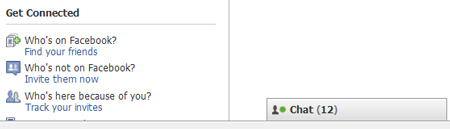
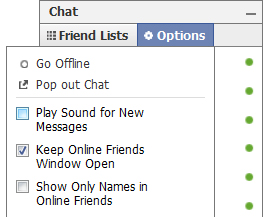
After doing so click on the chat button on the lower right corner of your browser. (NOTE: if you chose to be in offline mode this will take you to online mode) When the chat box pops up look for a options button on the top of the chat box. Click on the options button and another box will pop up over the chat box. Uncheck “Play Sound for New Messages”. Click on the chat button for all the boxes to disappear. From now on your account has disabled the “Play Sound for New Messages” feature. To enable this feature just simply check the “Play Sound for New Messages” box.

making people happy.